Author Archive

HTC will unveil two new Facebook branded mobile phones next month, City A.M. has learned.

The Taiwanese manufacturer will launch an official tie-up with Mark Zuckerberg’s $50bn (£31.6bn) social network at the Mobile World Congress event in Barcelona.

The high-end smartphones will be the first to bear the Facebook branding and colours. It could look similar to the mock-up pictured right, also created by HTC.

It is understood the phones will run on a tweaked version of Google’s Android operating system and will prominently display users’ Facebook messages and news feed on the home screen.

Other areas of integration expected include being able to call or email friends from information stored on their Facebook page.

Facebook has aggressively pushed mobile versions of its social network and industry insiders see this as an attempt to consolidate its position as the world’s leading social network.

Facebook’s Joe Hewitt (who worked on the Firefox web browser) and Matthew Papakipos (a leading member of the Google Chrome browser team) are thought to be behind the launch.

iOS 4.3 beta 2 released to developers

Posted: January 20, 2011 in Apple
Tags: , ,

Apple has just seeded the second beta of iOS 4.3 to developers. This includes to actual operating system for mobile iOS devices. In addition to an update for apple TV and the actual SDK.

Google has just added the ability to drag-and-drop images from the desktop into a Google Docs document.

The new feature works with the latest versions of Google Chrome , Firefox and Safari, and Google says it plans to add support for other browsers soon. The feature works exactly as you would expect. Rather than importing an image using the web uploader, entering in a URL or doing a Google Image Search, you just drag the item from your desktop into your Google Docs document.

Drag-and-drop uploading is actually a pretty big win for a web app like Google Docs. Competitor Zoho supports drag-and-drop for some of its apps, but dragging an image into a Zoho Writer file just ends up inserting a local file address into the document.

The process works pretty well and we had no problem taking images from our Mac desktop and putting them in a Google Doc using both Safari 5.0.2 and the latest release of Google Chrome.

 
(more…)

Internet Browsing is one of the most common activates on computers nowadays and how many of us do spend most of the time searching for the features on menus? We have got a list of shortcuts which were used commonly among the users, which helps you save a lot of time. Learn them and have a faster browsing experience.

Navigation

  • Back – Backspace
  • Forward – Shift+Backspace
  • Home – Alt +Home
  • Open File – Ctrl+O
  • Reload – F5
  • Reload (override cache) – Ctrl+F5
  • Stop – Esc

Current Page

  • Go to Bottom of Page – End
  • Go to Top of Page    – Home
  • Move to Next Frame  –  F6
  • Move to Previous Frame  –  Shift+F6
  • Page Source    Ctrl+U
  • Print    Ctrl+P
  • Save Page As    Ctrl+S
  • Zoom In    Ctrl++
  • Zoom Out    Ctrl+-
  • Zoom Reset    Ctrl+0

Editing

  • Copy    Ctrl+C
  • Cut       Ctrl+X
  • Delete   Delete
  • Paste    Ctrl+V
  • Redo    Ctrl+YShift+Z
  • Select All    Ctrl+A
  • Undo    Ctrl+Z

Search

  • Find    Ctrl+F
  • Find Again    F3
  • Find As You Type Link    ”
  • Find As You Type Text    /
  • Find Previous    Shift+F3
  • Web Search    Ctrl+K

Windows & Tabs

  • Close Tab    Ctrl+F4
  • Close Window    Alt+F4
  • Move Tab Left (when tab is focused)    Ctrl+Left Arrow
  • Move Tab Right (when tab is focused)    Ctrl+Right Arrow
  • Move Tab to Beginning (when tab is focused)    Ctrl+Home
  • Move Tab to End (when tab is focused)    Ctrl+End
  • New Tab    Ctrl+T
  • New Window    Ctrl+N
  • Next Tab    Ctrl+Tab
  • Open Address in New Tab (from Location Bar or Search Bar)    Alt+Enter
  • Previous Tab    Ctrl+Shift+Tab
  • Undo Close Tab    Ctrl+Shift+T
  • Select Tab (1 to 8)    CtrlAltCmd+(1 to 8 )
  • Select Last Tab    Ctrl+Alt+9

Tools

  • Bookmark All Tabs    Ctrl+Shift+D
  • Bookmark This Page    Ctrl+D
  • Bookmarks    Ctrl+B
  • Library window    Ctrl+Shift+BO
  • Caret Browsing    F7
  • Downloads    Ctrl+J
  • History    Ctrl+H
  • Toggle Private Browsing    Ctrl+Shift+P
  • Clear Recent History    Ctrl+Shift+Del
  • Error Console    Ctrl+Shift+J

Miscellaneous

  • Complete .com Address    Ctrl+Enter
  • Complete .net Address    Shift+Enter
  • Complete .org Address    Ctrl+Shift+Enter
  • Delete Selected Auto-complete Entry    Shift+Del
  • Help    F1Cmd+?
  • Select Location Bar    Ctrl+L
  • Select or Manage Search Engines (when Search Bar is focused) F4

Firefox does not provide any method of customizing keyboard shortcuts. But they are all optimized for the best practices and user friendliness. Hope this can give a value addition to your internet browsing experience.

If you are using Ubuntu Karmic, Lucid, or even the newly released Maverick, you should already have Ubuntu One installed in your computer. While Ubuntu One has become an useful tool in syncing your files/folders/music, most of the time, we are left guessing whether the sync is working or not. Wouldn’t it be great if there is an indicator or system tray icon (just like Dropbox) that tells us that the syncing is in progress or completed?

To address this problem, Roman has come up with the UbuntuOne indicator package that show the sync status of Ubuntu One in the system tray.

Note: The package is only meant for Ubuntu Lucid and Maverick.

(more…)

Facebook is launching one-time passwords in an effort to make it safer to log on to the social network from public computers.

Users can text to get a temporary password

It also claims the system will help prevent cyber-criminals accessing users’ accounts.

Users need to text the words ‘otp’ to 32665 and they will be sent a temporary password that will expire after 20 minutes.

But security experts questioned whether the system was safe.

Sign out

(more…)

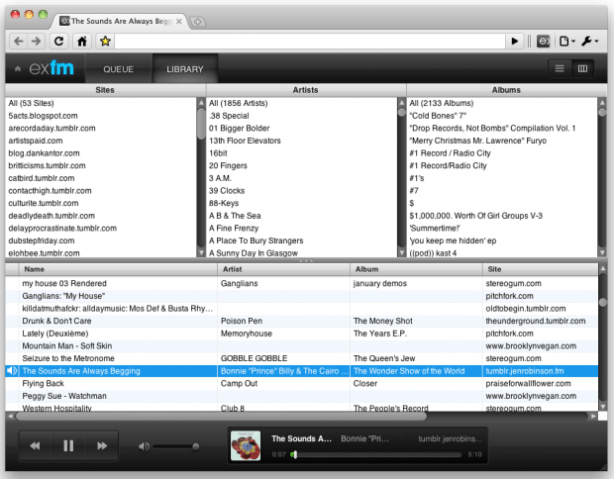
Have you been reluctant to make the switch to Google’s excellent HTML5-compliant browser, Google Chrome? If you love music and frequent a lot of MP3 blogs, you might want to change your mind: thanks to an amazing new extension, Google Chrome just became your killer app.
(more…)

Wine 1.2 stable has finally been released today after more than two years of development.

The release sees support for 64bit applications, new Tango-based icons (props to Joel Holdsworth who helped lead the work on the refresh), 3, 000 bug fixes and a staggering 23,000 changes.

(more…)

Google Chrome has been my default browser for quite some time, but I’ve got to admit… I like what I’m seeing so far in Firefox 4, and the tweaks just keep on coming. One recent addition which has been talked about for some time is the option to create App Tabs.

Firefox 4’s App Tabs look pretty much like a pinned tab in Google Chrome. For now, an App Tab appears to simply force a tab to the left and display it with the favicon only. It’s a great way to save additional space on your tab bar, and a feature I use religiously in Chrome.

Right now, you’ll only find App Tabs in the Mozilla nightly builds of Firefox 4 — which you can download here for Windows, Mac, and Linux. To create an App Tab, just right click and select the option from the context menu.

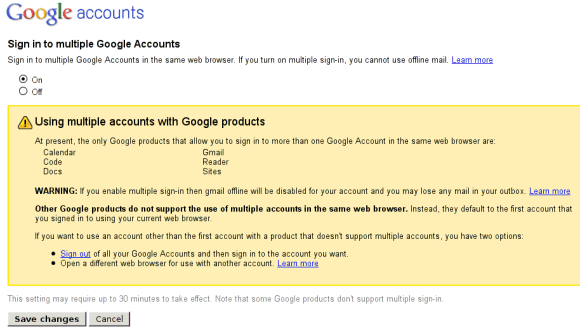
Google Operating System reports that Google is testing a feature for signing in using multiple accounts.

While the post itself has a screenshot (which you can see above), it does not include any instructions on how to enable this functionality. This is obviously a limited or closed-beta test; the question is just how limited it is.

This functionality is not just “useful” – it is often vital. I have one account tied into an AdWords account, another account tied into Analytics, and yet a third Apps account. Merging them is impossible, especially as long as Google Apps doesn’t support Reader. Having a way to sign into all three at the same time from the same browser would certainly make things less irritating.